Logging In
To access NextGen Control Center, you need a user account created by your administrator. Here is how to log in and manage your session.
How to Log In
1
Open NextGen
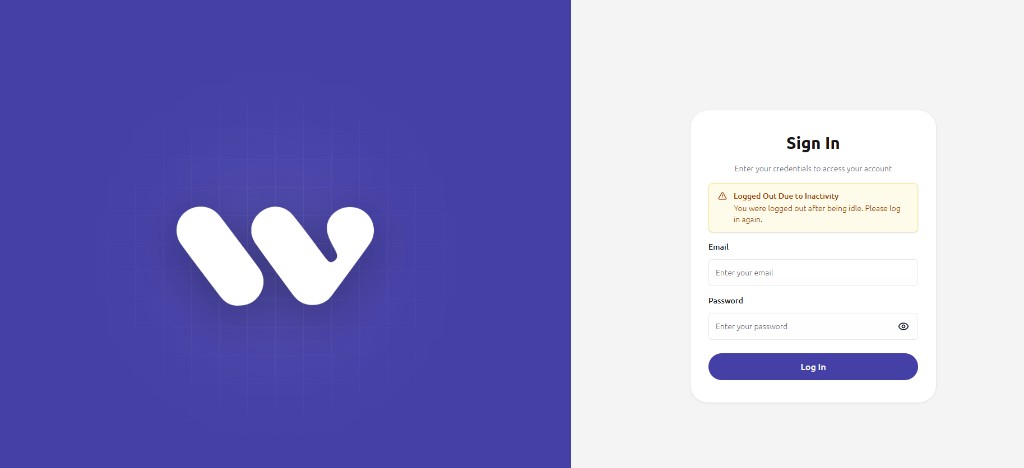
Open your web browser and go to your company's NextGen URL (provided by your administrator). You will see the login page.
2
Enter your credentials
Type your email address and password in the login form.
3
Allow location access (optional)
Your browser may ask for location permission. This is used for security logging and is optional.
4
Click Login
Click the Login button. After successful authentication, you will be taken to the Welcome dashboard.
Login Page
First Time Login
If this is your first time logging in, use the credentials provided by your administrator. You may be prompted to change your password after the first login.
Session & Timeout
For security, NextGen automatically logs you out after a period of inactivity:
- Idle Warning — After being inactive for a set time, a warning appears
- Auto Logout — If you remain inactive (typically 20 minutes), you are logged out automatically
- Moving your mouse or typing resets the idle timer
- Multiple tabs — Your session is shared across browser tabs
Logging Out
1
Click your profile
Click your profile icon or name in the top-right corner of the screen.
2
Select Logout
Click Logout from the dropdown menu. You will be redirected to the login page.
Troubleshooting
| Problem | Solution |
|---|---|
| Incorrect password | Double-check your email and password. Contact your admin if you forgot your password. |
| Account locked | Contact your administrator to unlock your account. |
| Page not loading | Check your internet connection. Try clearing your browser cache. |
| Logged out unexpectedly | Your session expired due to inactivity. Simply log in again. |
You are in!
Now that you are logged in, learn how to navigate the dashboard.